How to Track Leads From Google Business Profile (UK Guide)
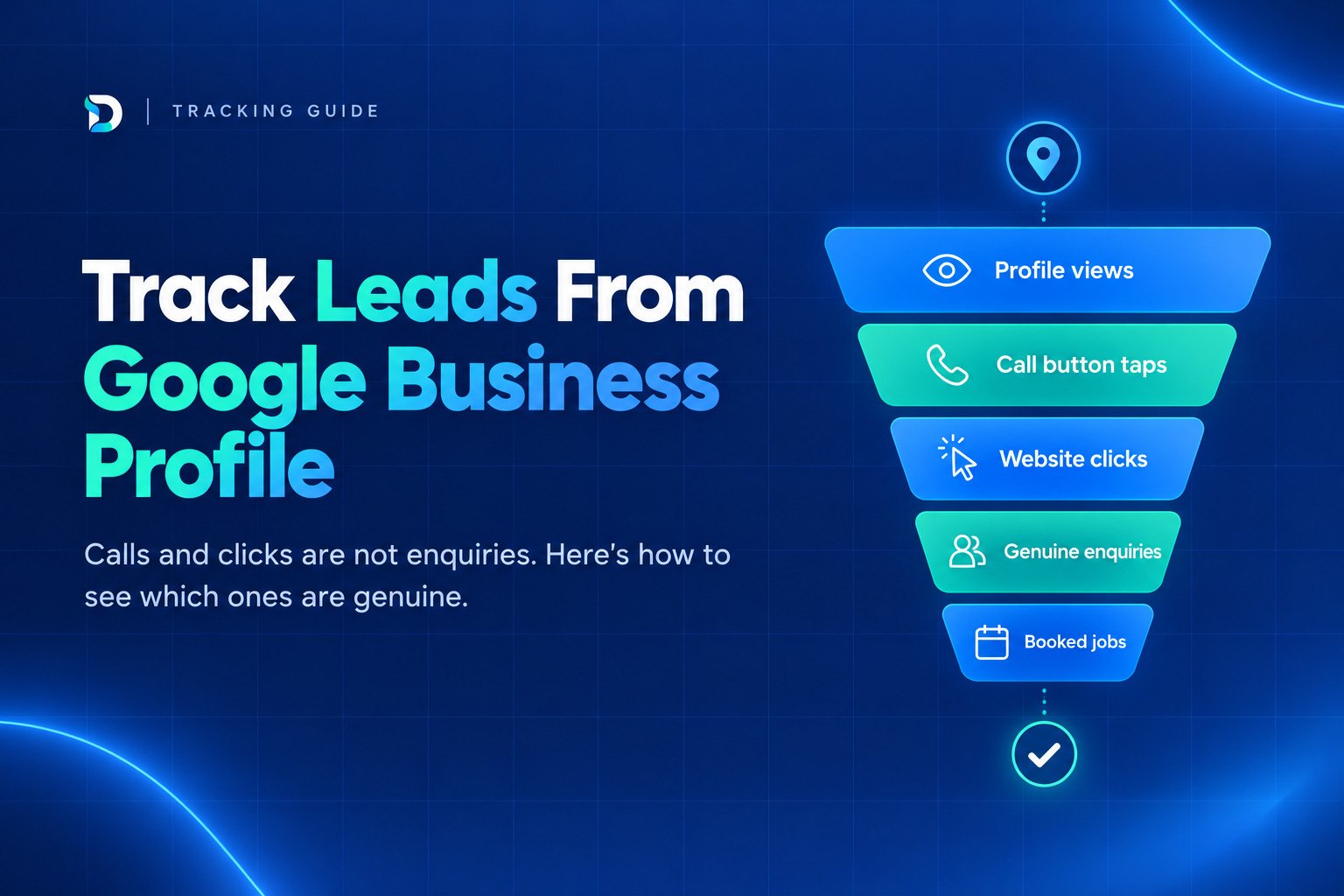
If you want to track leads from Google Business Profile, start by accepting that the profile report counts actions, not enquiries. A "call" is someone tapping the call button and a "website click" is someone tapping your link. Neither tells you whether anyone spoke to you, sent a form or booked a job.
To close that gap, tag your profile website link so GA4 can see the visits, log every call and message against its source, and check the lot against real enquiries once a month. It takes little time each month and costs nothing.
The short answer
- The report counts taps and clicks. It does not count answered calls, genuine customers or jobs.
- Tag the website and appointment links with UTM values so GA4 can separate profile visits from everything else.
- Log calls and messages by source, even if that is a simple spreadsheet or a note in your diary.
- Review monthly. Mark each contact as genuine, spam or missed, then record which ones became booked work.
That routine answers the question most owners actually have: which leads come from Google Maps and the profile, and which are just noise.
What your Google Business Profile report actually counts
Google's performance report lets you monitor interactions including searches, views, directions, calls, website clicks, messages and bookings. It is a useful record of how people interact with your listing. It is not a lead report.
Here is what each metric means in plain terms:
- Views and searches: how often your profile appeared and what people typed to find it. These are visibility measures, not results.
- Calls: according to Google, the number of times a customer clicked the call button on your profile. It counts button clicks, not completed or answered calls, and you need a phone number on the profile for it to be tracked.
- Website clicks: taps on your website link. This is the figure to pair with GA4 for website click tracking.
- Messages and bookings: conversations started and appointments requested through the profile, where those features are switched on.
- Directions: people asking for a route to you, which matters mostly for shops, clinics and salons with a physical location.
One more point that catches people out. The profile data includes activity from both organic search results and Google Ads, so a change in ad spend can change your profile numbers (a third-party guide citing Google's help page). If calls jump in a month when you also increased your ad budget, the profile may not have improved at all.
Why profile numbers are not the same as leads
Between a tap and a job, a lot can go wrong, and none of it shows in the report.
Missed calls. Someone taps call while you are on a roof or with a client, gets voicemail and rings the next firm. The report still counts it.
Wrong numbers and sales calls. Suppliers, recruiters and people looking for a different business all use the same button.
Website clicks that go nowhere. A visitor reads your page, decides you are too far away or too expensive, and leaves without a form or a call.
Here is a worked example. It is an illustration, not a benchmark. Say your report shows ten call taps in a month. Six are answered, and of those, three are genuine enquiries for work you actually do. One becomes a booked job. The profile reported ten, but you really have three enquiries and one job. If you want a framework for judging the quality of contacts, see our guide on how to tell if your leads are genuine.
This is why genuine enquiries matter more than clicks or views. A profile that shows rising numbers and no extra work is not working, however good the graph looks.
How to track leads from your Google Business Profile website link in GA4
By default, visits from your profile can get mixed in with ordinary organic or direct traffic, which makes them hard to isolate. Adding UTM parameters to the link solves that.
Step 1: Build a tagged link
Add three values to the end of your website URL:
utm_source=googleutm_medium=organicutm_campaign=gbp_website
The full link looks like https://yourdomain.co.uk/?utm_source=google&utm_medium=organic&utm_campaign=gbp_website. For the appointment or booking link, use the same source and medium but change the campaign to gbp_appointment.
Step 2: Keep the naming consistent
Pick a convention and stick to it. Use lowercase, no spaces, and the same spelling every time. GA4 treats GBP and gbp as different values, so inconsistent tagging splits your data into pieces that are hard to add back together. Write the convention down somewhere the next person can find it.
Step 3: Add the links to your profile
In your profile, edit the website link and, if you use one, the appointment link, and paste in the tagged versions. Check the link works by clicking it from your live profile.
Step 4: Find the visits in GA4
In GA4, open the traffic acquisition report and look at session source and medium. Profile visits will show as google / organic with your campaign name, so filter by campaign to separate them. If you only ever see the generic organic row, the tag is not being picked up, so test the link again.
Step 5: Count form submissions as leads, not clicks
A visit is not a lead. GA4 lists generate_lead as a recommended event that triggers when a user submits a form or a request for information. Set it to fire on a successful form submission, ideally on the thank-you page or confirmation message, and mark it as a key event.
Avoid counting phone or email button clicks as leads in the same way, and avoid firing the event twice (for example once on the button and once on the thank-you page). Either one inflates your lead count and makes the profile look better than it is.
How to track phone calls and messages from your profile
Calls are where most service businesses lose the trail, because the phone does not carry a UTM tag. You have three realistic routes.
| Route | Cost | What you learn | Watch out for |
|---|---|---|---|
| Profile call count plus a manual call log | Free | Roughly how many people tapped call, plus what you record yourself | Relies on someone logging calls consistently |
| Google Ads call setup | Part of your ad set-up | Calls driven by your ads | Does not cover organic profile calls |
| Tracking number from a call-tracking provider | Paid subscription | Call source, duration and often recordings | Number consistency and Google's phone number guidelines |
The free route
Keep the call button's number on the profile as it is. Each day or week, note every call that came in, whether you answered it, and how the person found you. Then compare your log with the profile's call count at the end of the month. The gap between the two is useful in itself, because it shows how many taps never reached you.
Google Ads calls
If you run ads, Google Ads call set-ups can record calls that come from your ads. That covers ad-driven calls only, so it will not explain your organic profile activity. It is worth having if ads are part of the mix.
A tracking number
A tracking number gives you more detail, such as which source produced each call. The trade-off is consistency. Your name, address and phone number should match across your website, profile and directories, and Google has guidelines on how phone numbers should be used on a profile. Check the current guidance and test before swapping any number. Our guide to call tracking for service businesses covers what to look for in a UK provider, and a UK-based number that suits your local area is the sensible starting point.
An "ask every caller" script
For firms with low call volumes, a tracking number may be overkill. Instead, ask every caller one simple question, and write the answer down:
"Just so we know which of our marketing is working, how did you find us today?"
Offer a short list if they hesitate: Google Maps, Google search, an advert, a recommendation, something else. Keep the wording the same every time, and record it before you end the call. It is not perfect, because people forget or say "Google" for everything, but it is far better than nothing.
Messages work the same way. Reply promptly, then log each one with its source, since the profile only records that a conversation started.
Turn profile actions into genuine enquiries and jobs
Here is a short monthly routine:
- Export or note your profile actions for the month: calls, website clicks, messages and bookings.
- List every call, form and message you actually received, with its source.
- Mark each one as genuine, spam or missed.
- Record the outcome against each genuine enquiry: quote sent, booked, lost, or still open.
- Compare the profile's action counts with your real enquiries and jobs.
After a few months, a pattern appears. You will see whether the profile brings work you want, how many taps you lose to missed calls, and whether your GA4 form submissions match the forms in your inbox.
If you run ads, Google Ads can go further. Offline conversion imports let you measure what happens in the offline world, such as in an office or over the phone, after an ad results in a click or call. Enhanced conversions for leads is an upgraded version that uses user-provided data such as email addresses. This is useful for ad-driven leads, but for a small profile on its own it is usually more set-up than it is worth.
What helps more is one view across the profile, GA4, Search Console and your ads, so you are not stitching four reports together by hand. If you are still working out the wider picture, start with how to know where your leads are coming from.
Common mistakes when you track leads from Google Business Profile
- Treating views and searches as results. They show visibility, not enquiries.
- Counting every call tap as a lead. Some are missed, wrong numbers or sales calls.
- Comparing months without allowing for ad changes. Because the report can include Google Ads activity, a budget change can shift your numbers.
- Double-counting events in GA4. Firing generate_lead on both a click and a thank-you page doubles your forms.
- Swapping phone numbers without testing. A broken or inconsistent number can cost you calls and muddy your listing.
- Ignoring missed calls. They are often the biggest leak, and the easiest to fix with a call-back routine.
- Tagging links inconsistently. Mixed-case or changing campaign names split your GA4 data.
If your numbers are low to begin with, the issue may be ranking rather than measurement. In that case, read why your profile may not show in the map pack before you spend time refining your reports.
Seeing your Google Business Profile leads alongside your other channels
Profile data on its own cannot tell you whether Google Ads, Meta, SEO or the profile deserves your budget. Each platform reports in its own way, with its own definitions, and each tends to flatter itself. It is common for owners to sit with four separate reports, each showing "results", and still be unable to say which one produced work.
That is the problem the DRD reporting dashboard is built for. DRD (Dashient Reporting Dashboard) brings Google Business Profile, Google Ads, Meta Ads, GA4 and Search Console into one view, and connects the data back to enquiries, so you can see which marketing brings genuine enquiries rather than just clicks. The DRD dashboard starts from £49/month, with a 30-day free trial and no card needed.
You do not need it to start. The tagging and logging routine above works on its own. But if you want that routine pulled together in one place, it is worth a look.
Frequently asked questions
Next step
Start with the basics this week: tag your profile link, set up a simple call log and begin asking every caller how they found you. If you would like all your channels in one place afterwards, you can start a free 30-day DRD trial, with no card needed.